



Claude Desktop browser
What is Claude Desktop browser?
The Claude Desktop browser is a browser built into Anthropic’s Claude Desktop app. It opens in a side panel next to a user’s task, and Claude uses it to open sites, read pages, click, type and fill in forms. It is separate from the user’s own browser.
Anthropic also offers Claude in Chrome, an extension that works inside the user’s own Chrome with the accounts already signed in there. This page covers only the built-in browser.
Legitimate use cases
- Handing off the web part of a Cowork task so the user can keep working while Claude browses.
- Working with web pages during Cowork and Code sessions without installing an extension.
- Starting a task from Claude on the web or mobile and having it run in the browser of the user’s desktop app, when the built-in browser is the user’s preferred browser and the app is open and online.
- Working on sites the user signs in to, or whose logins the user chose to import.
In each case a person started the task and approves which sites Claude may act on.
Suspicious or abusive use cases
The usual checks do not transfer from classic bots to the Claude Desktop browser.
- No documented user-agent or IP range. Anthropic documents three agents for site owners: ClaudeBot, Claude-User and Claude-SearchBot. The built-in browser is not among them in Anthropic’s crawler article. [
- It loads pages from the user’s device. Anthropic’s Claude Desktop 3P documentation says pages load directly from the user’s device. Anthropic links a list of source IPs for its crawlers, and does not describe it as covering the built-in browser.
- It keeps its own sign-ins. Logins and cookies live in the app’s own browser storage, separate from the user’s other browsers. Cowork keeps logins across sessions, and users can import saved logins site by site: from Chrome, Edge or Firefox on macOS, and from Firefox on Windows and Linux (beta).
- Claude-User is a different thing. Anthropic says Claude-User may visit websites when people ask Claude questions, and that disabling it stops Claude retrieving content for those requests. Anthropic does not describe the built-in browser as using it. Do not assume it does.
A user-agent or IP check alone will not separate a person browsing from the Claude Desktop browser acting for that person.
Why is it visiting your website?
A user asked the Claude Desktop browser to. When a Cowork task involves a website, the browser opens in a side panel and Claude opens sites, reads pages, clicks, types and fills in forms while the user watches. A task started on web or mobile can also use the browser in the user’s desktop app when the built-in browser is the user’s preferred browser and the app is open and online.
Before Claude acts on a site for the first time, it asks the user for permission. Anthropic says high-risk sites are blocked and that every action runs through safety checks that compare it with what the user asked for.
Organization owners on Team and Enterprise plans can turn the built-in browser off, and administrators of Claude Desktop 3P can allow or block specific sites. These controls belong to the user and their organization. They do not give a website owner a way to opt out.
What it can do on your site
Anthropic documents that Claude can open pages, read them, click, type, fill in forms, take screenshots and run JavaScript on a page. After a user approves a site, Claude can interact with its pages as the user sees them, including pages behind the user’s sign-in on that site.
Anthropic strongly advises against using the built-in browser for tasks involving sensitive information, such as financial accounts, medical information or other people’s personal data. The pages reviewed do not say whether checkout or payment flows are excluded.
| Action | Documented by Anthropic |
| Read page content | Yes |
| Click, type and fill in forms | Yes |
| Take screenshots | Yes (Claude Desktop 3P docs) |
| Run JavaScript on a page | Yes (Claude Desktop 3P docs) |
| Act on pages behind the user’s sign-in | Yes, after the user approves the site |
| Complete payments or checkout | Not stated |
How to detect and authenticate Claude Desktop browser?
Do not start from the user-agent. Start from behavior and context.
- Check what Anthropic publishes first. Confirm whether the traffic matches a documented Anthropic user-agent. A match points to Claude-User or a crawler, not necessarily the built-in browser.
- Look at the network origin. Pages load from the user’s device, so expect home or office networks rather than a cloud provider’s range.
- Look at session-level signals. Compare navigation speed, form-fill timing, input patterns and action sequences against normal customers on the same flow.
- Look at automation artifacts. Claude can click, type and run JavaScript on a page, so check for signs of programmatic control in the session.
- Weigh the account. A real, long-standing account doing a sensitive action in an unusual way is a different case from a new account doing the same.
- Score the action, not only the visitor. Reading a public page and changing an address or password carry different risk.
Should you block it?
The answer depends on the page and the action. A blanket block would also stop real customers who use an assistant. A blanket allow ignores sensitive flows.
| Page or action | Default stance | Reasoning and trade-off |
| Public content and product pages | Allow | Low risk, and it helps customers who use assistants. Watch volume. |
| Search, filters and pricing views | Limit | Rate limit to protect load and pricing data. |
| Login and account pages | Challenge | Assistants may act for a real user, but credential abuse looks similar. Use step-up checks. |
| Checkout, payment and account changes | Challenge or limit | Highest impact. Allow only with strong signals, and keep a path for legitimate delegated purchases. |
How to manage Claude Desktop browser?
- Set the policy by action. Decide what an agent-assisted session may do on each page type, using the table above.
- Apply rate limits and step-up checks on login, account and checkout flows.
- Monitor, then tighten. Start by measuring this traffic before blocking, so you do not cut off real customers.
- Do not rely on robots.txt. It governs crawlers and is not documented as applying to the Claude Desktop browser.
- If you manage employee devices, Anthropic documents admin controls for the built-in browser: owners can turn it off, and administrators of Claude Desktop 3P can allow or block specific sites. These apply to your staff, not to visitors to your site.
DataDome recommendation
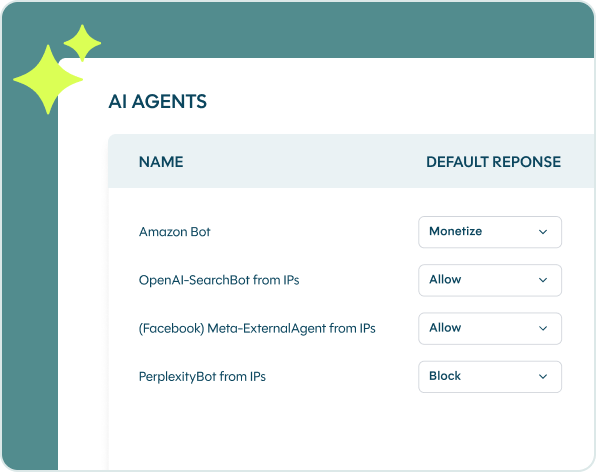
We treat the Claude Desktop browser as user-delegated automation, not as a crawler to block on sight. Our default is to allow low-risk reading, limit high-volume access, and challenge sensitive actions such as login, account changes and checkout.
Because the Claude Desktop browser has no documented user-agent or signature, we look at behavior and the action being taken. DataDome Bot Protect helps you detect and manage automated sessions in real time, and DataDome Agent Trust helps you decide which AI agents to trust and what each may do.