


Two-Factor Authentication Adds Extra Security to the DataDome Dashboard
We are happy to announce that you can now make your DataDome user account even more secure with two-factor authentication.
Two-factor authentication (2FA) adds an extra layer of security to the authentication process via random one-time passwords, generated specifically for you on a device linked to your account, and valid for only a limited time.
DataDome uses a technology called Auth0 for all things related to user authentication, including the new 2FA feature. Auth0 is a global leader in Identity-as-a-Service (IDaaS) and supports a wide range of different mobile applications on all major platforms, including Authy, Google Authenticator, Microsoft Authenticator and Guardian.
Why enable two-factor authentication?
When the 2FA function is enabled, logging in to the DataDome dashboard will require a one-time code generated by your app. In this way, even if someone obtains your username and password, they will not be able to log in to your account.
The DataDome solution does not capture, handle or store any sensitive user data from our customers’ websites. No matter who accesses your dashboard, there is therefore never any risk of sensitive data leaks or GDPR/CCPA compliance issues.
Nevertheless, an unauthorized intruder would get access to potentially business-sensitive information, such as who your allow-listed partners are or what kind of responses you have defined for specific bots.
Worse, intruders might be able to tamper with your bot protection settings: they could change your custom rules to enable unwanted bots to access a website or an API, disable the protection altogether, or even create custom rules that would block legitimate human traffic.
How to enable two-factor authentication for the first time:
To enable this feature, you must first install a two-factor authentication app such as Google Authenticator or Authy on your mobile device, if you don’t already have one.
Activating the feature in the dashboard should be intuitive, but here’s a step-by-step explanation anyway:
1. Log in to the DataDome dashboard and go to your profile page (click on your name at the bottom of the left side menu).
On the profile page, you will see a section with a prompt to enable the feature. Click the blue button and re-enter your password to continue.
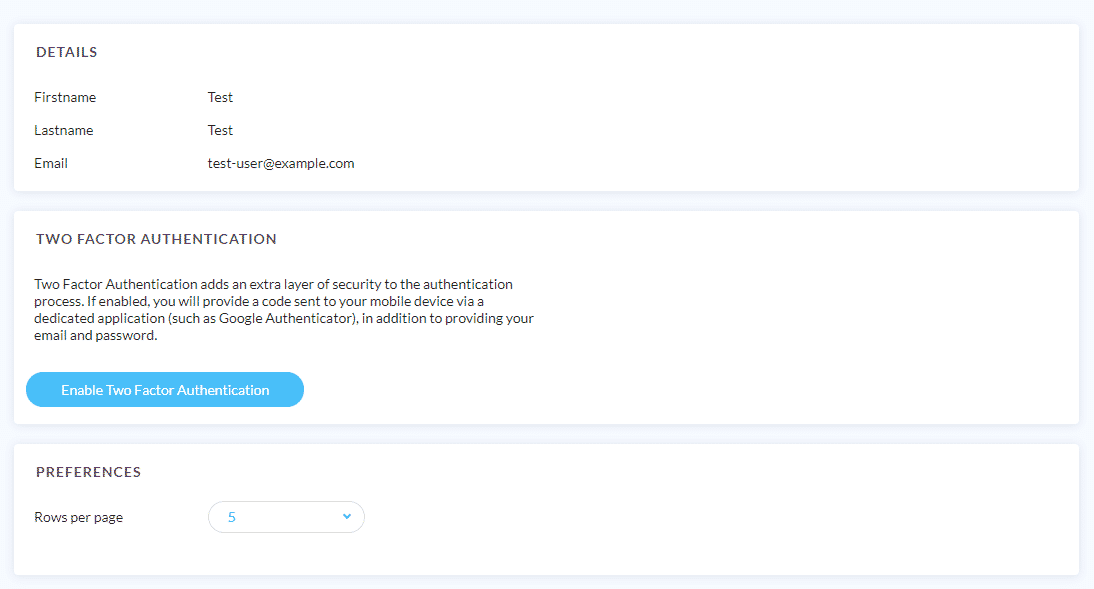
2. The next page will display a QR code. Scan the code with the two-factor authentication app on your mobile device.

3. Enter the six-digit code you receive in the app, and click Enable.
A new window will come up where you will see a 24-digit recovery code. We recommend that you copy this code and keep it in a safe place that is NOT on your mobile device, and known only to yourself (on a piece of paper in your wallet, for example, or in a notebook). In this way, should you lose your mobile device, you will still be able to log in with the recovery code.
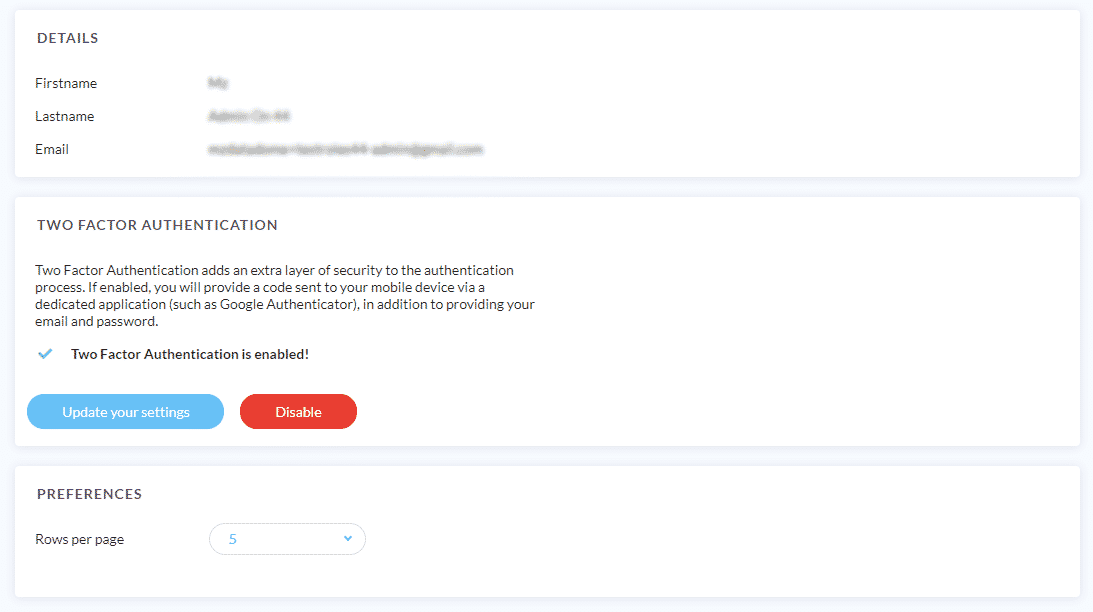
Voilà, two-factor authentication is now enabled on your user account. On your profile page, you will now see a different window, with buttons to update your settings or disable 2FA.
Logging in with two-factor authentication:
Once the feature has been activated, logging in to the dashboard follows the standard procedure for two-factor authentication.
Enter your username and password, then enter the second-factor code (six-digit code) generated by the app on your mobile device.
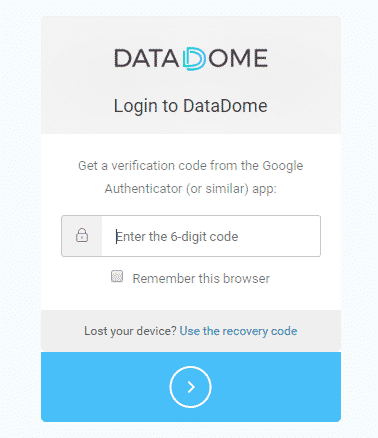
If you tick the “Remember this browser” checkbox, the second factor code prompts will be disabled for 30 days.
Additional features for administrators:
In the Management > Users dashboard section, company admin users can see all the other user’s two-factor authentication status (whether 2FA is enabled or disabled).
If necessary, the administrator can also disable two-factor authentication for a user, for example if the user is unable to generate the second factor code due to a lost or broken device. To reduce the risk of this happening, all users should be encouraged to keep their recovery codes.
Getting started:
While two-factor authentication is not mandatory, we recommend that all our customers take advantage of this feature. It comes at no extra cost, and is freely available today for all active DataDome accounts.
Ready? Log in to your dashboard and activate two-factor authentication right away.
Related posts

Introducing DataDome’s AI Key Takeaways Feature: Understand Your Protection at a Glance
Tell me more

Introducing DataDome's Hosted MCP Server for Direct AI Agent Access to Trend Reports
Tell me more

Account Protect Updates: Clearer Visibility, Stronger Signals, & More Control
Tell me more

Q2 2026 Product Roundup: Agent Trust, Priority Protect, & More
Tell me more

